
Web Terminal
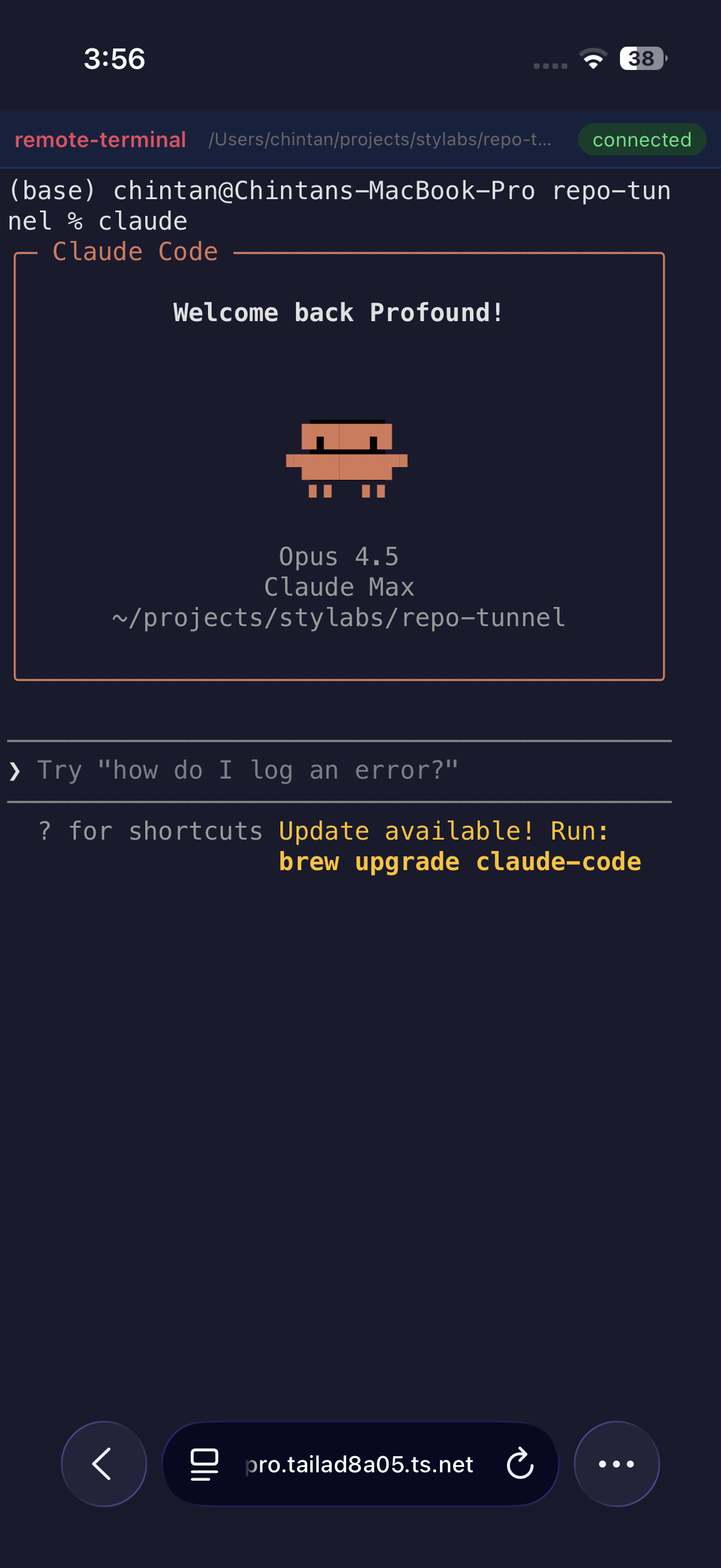
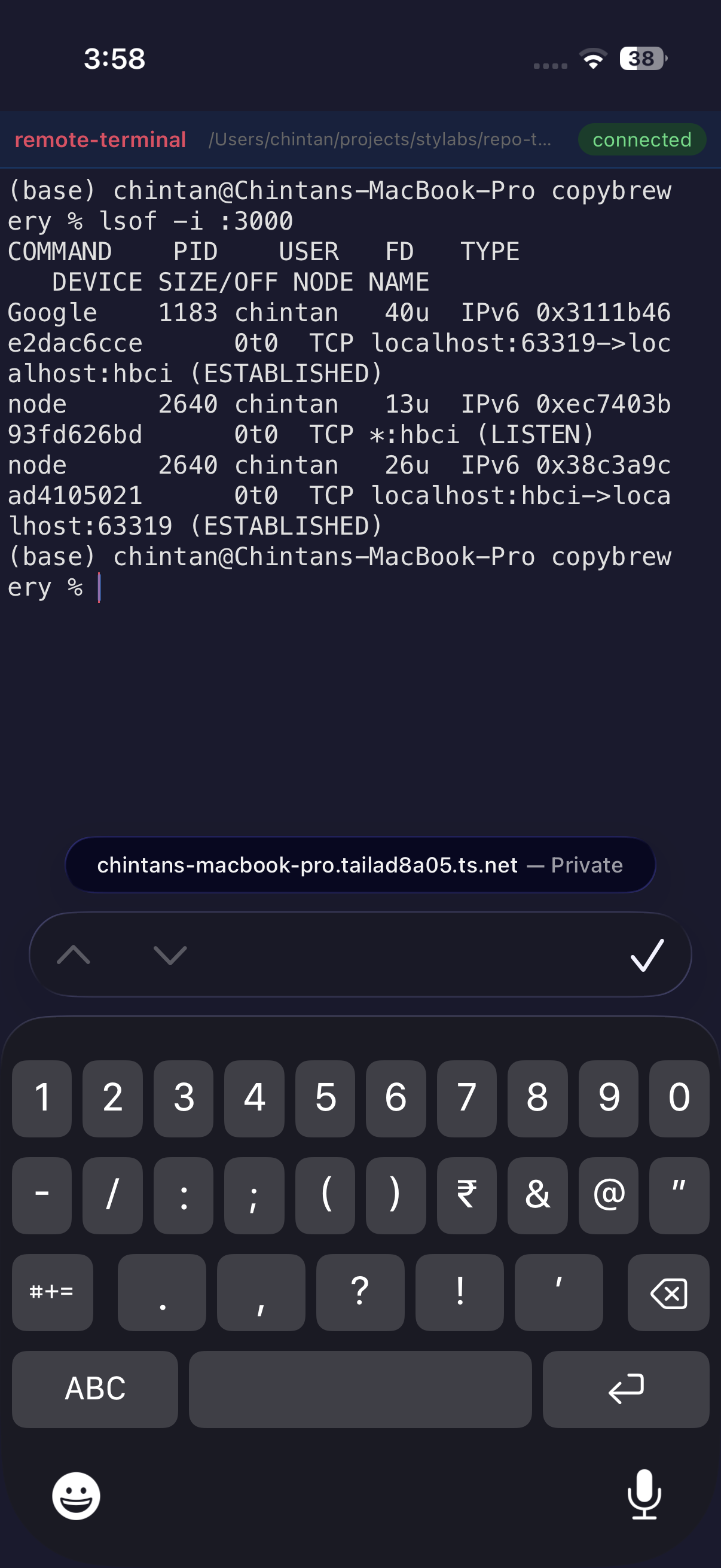
Full xterm.js terminal in your browser. Color support, copy/paste, responsive design. Works on mobile.
Access your dev workspace from your phone, browser, or via AI.
Secured with Tailscale. No port forwarding. No complexity.
Full xterm.js terminal in your browser. Color support, copy/paste, responsive design. Works on mobile.
Run commands from your phone. Quick shortcuts or raw shell commands. Perfect for on-the-go.
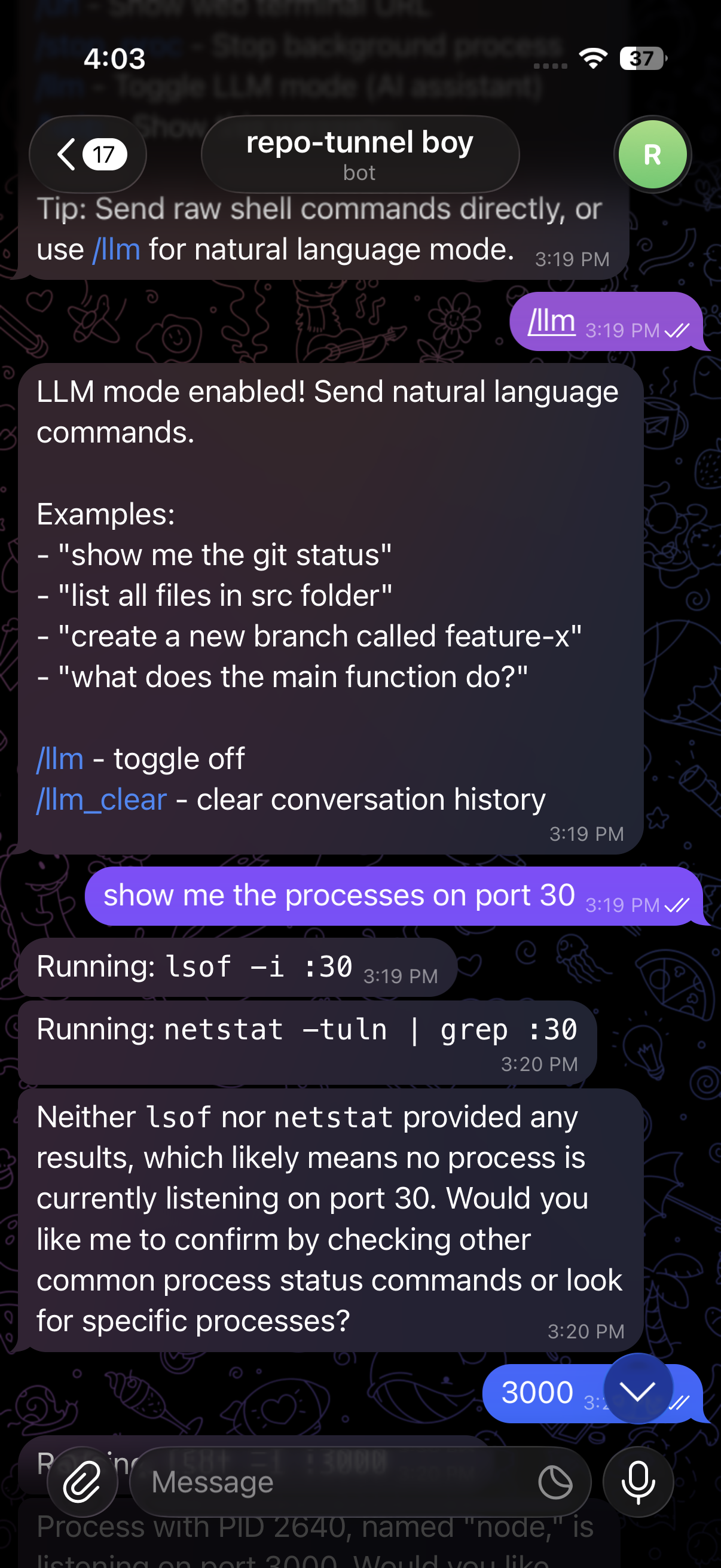
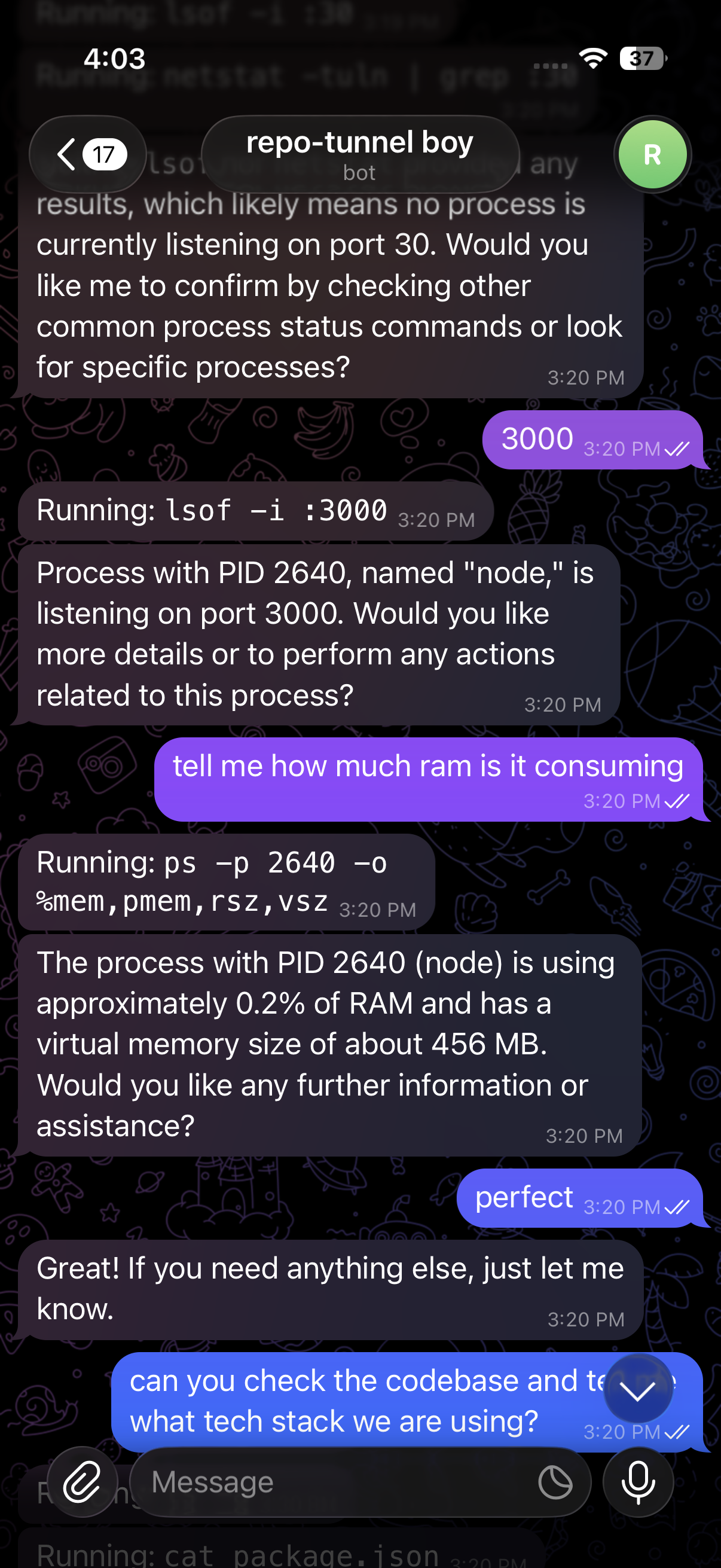
Natural language commands. Just describe what you want — the AI figures out the rest.
Always-on mesh VPN. Install once on your devices — they stay connected. No manual connect, no port forwarding, end-to-end encrypted.
Run npx remote-terminal start on your dev machine. Takes 30 seconds.
Install Tailscale on your dev machine and phone/tablet. They auto-connect on the same private network — no port forwarding needed.
Open the web terminal, use Telegram bot, or chat with AI. Tailscale keeps you connected wherever you are.
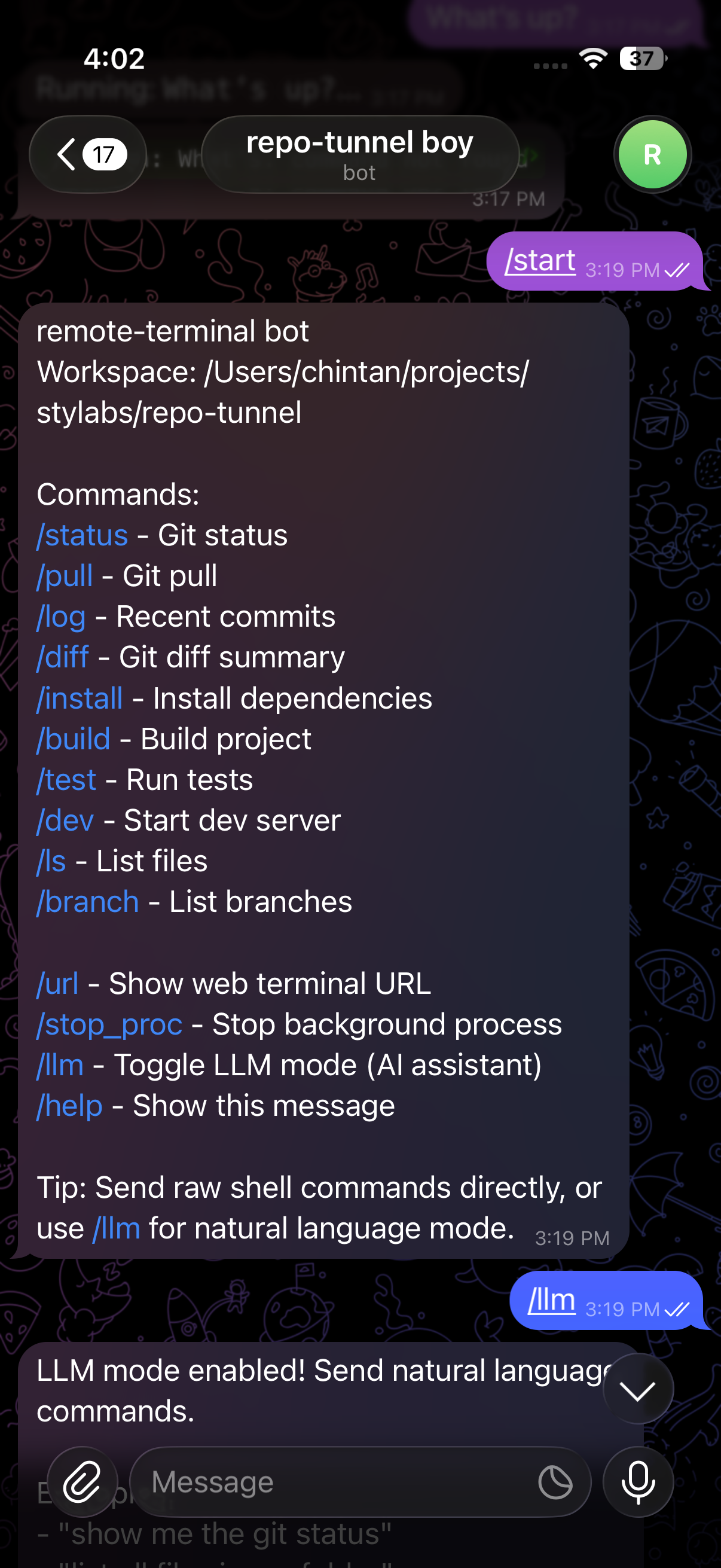
Access your terminal from anywhere — via Telegram bot or web browser.
Control your terminal through natural conversation
Full terminal access from any browser
LLM mode lets you use plain English. No need to remember commands.
# Clone the repository
git clone https://github.com/chintan-diwakar/remote-terminal.git
cd remote-terminal

# Install dependencies
npm install

# Configure (add your Telegram token, OpenAI key)
cp .env.example .env

# Start the server
npm startAdd these to your .env file: